User Management
User access to the system is controlled through Employee accounts and role assignments. Administrators and designated contacts are responsible for maintaining employee information and assisting with login-related issues.
Employee accounts are managed from:
Administration → Employee List
The Employee List serves as the central directory for all system users.
Administrator Capabilities
Administrators can:
- View all users in the system
- Update employee information
- Activate or deactivate users
- Assist users with login issues
- Request role or permission changes
- Request creation of new users
- Reset user passwords (with administrative permissions)
Role and permission changes, as well as new employee creation, require submission of a Service Desk ticket to a CharbTech system administrator.
Employee List
The Employee List page provides a searchable grid of all employees configured in the system.
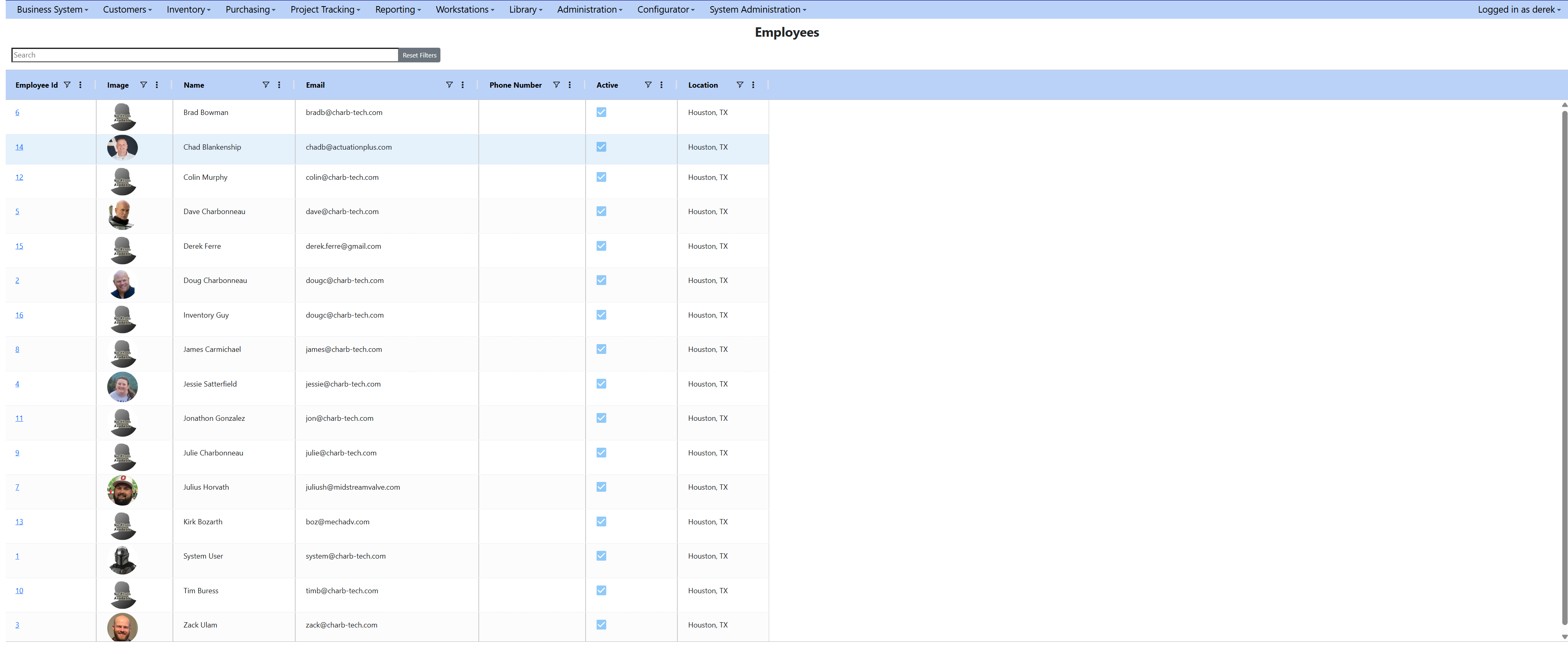
Each employee appears as a row in the grid and includes:
- Employee ID (system generated, clickable)
- Image (if uploaded)
- Name
- Phone Number
- Active (checkbox indicating if the account is enabled)
- Location
The system supports multiple locations. Location options are configured by CharbTech development and may appear as a dropdown when more than one location exists.
Clicking the Employee ID opens the Employee Maintenance workspace.
Employee Maintenance Workspace
Selecting an employee opens a tabbed screen that allows administrators to review and maintain employee account details.
Tabs available:
- Employee
- Roles
- Action Logs
- Change Logs
Employee Tab
The Employee tab allows administrators to update general employee information and account settings.
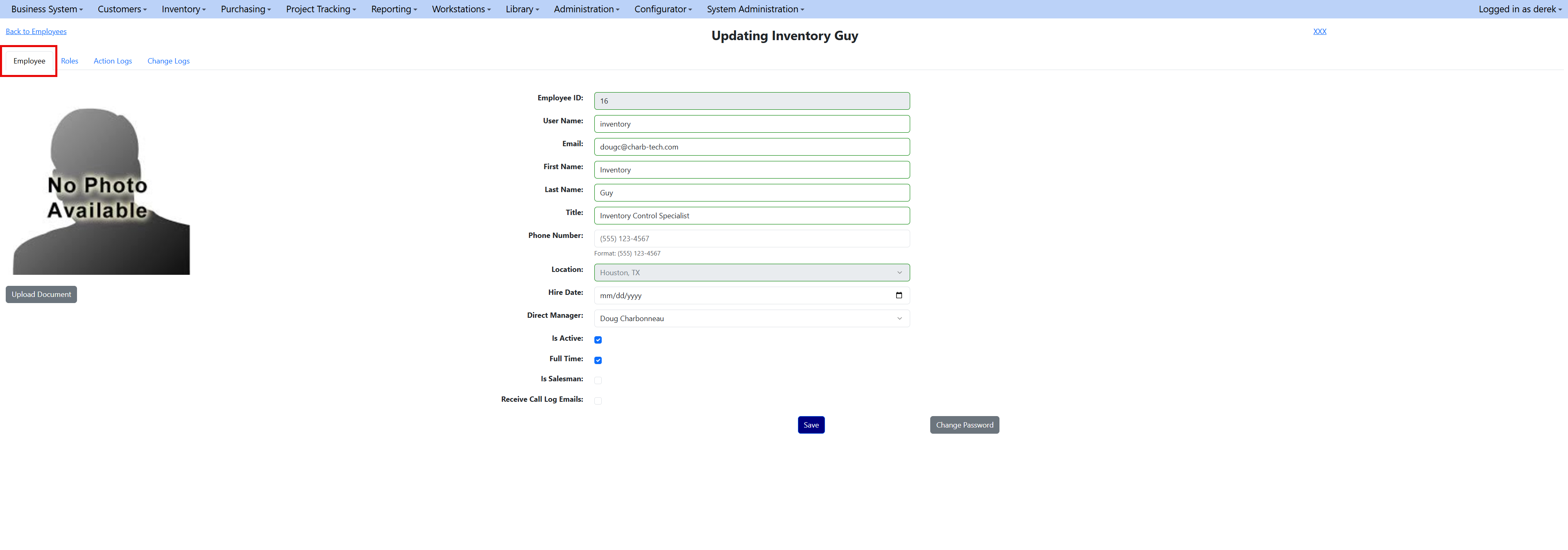
Editable Information
- User Name
- First Name
- Last Name
- Title
- Phone Number
- Location (dropdown if multiple locations exist)
- Hire Date
- Direct Manager (dropdown of other employees)
Account Settings
- Is Active — Enables or disables system access
- Full Time — Indicates employment status
- Is Salesman — Flags the employee as a salesperson
- Receive Call Log Emails — Determines if the user receives call log notifications
You may also upload a profile image for the employee.
Roles and Permissions
The Roles tab displays all roles assigned to the employee.
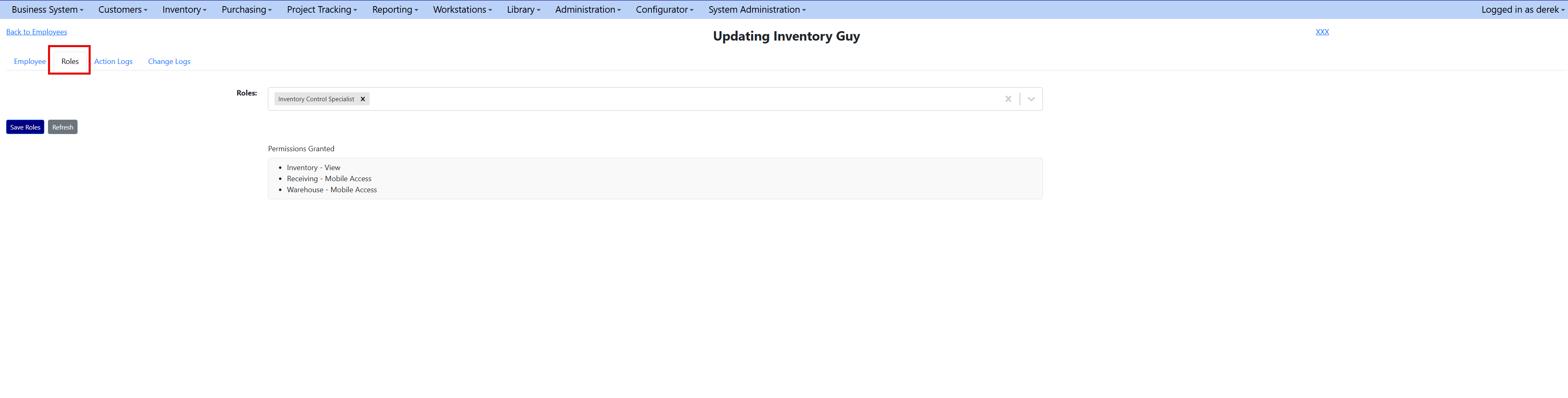
Below the role list is a Permissions panel showing all permissions inherited from assigned roles.
Roles determine:
- What areas of the system a user can access
- What actions the user can perform
Users inherit permissions from their assigned roles and may have multiple roles.
Roles and permissions cannot be modified directly in the application. To add or update roles or permissions, submit a Service Desk ticket to a CharbTech system administrator.
Action Logs
The Action Logs tab provides a history of general actions taken on the employee account.
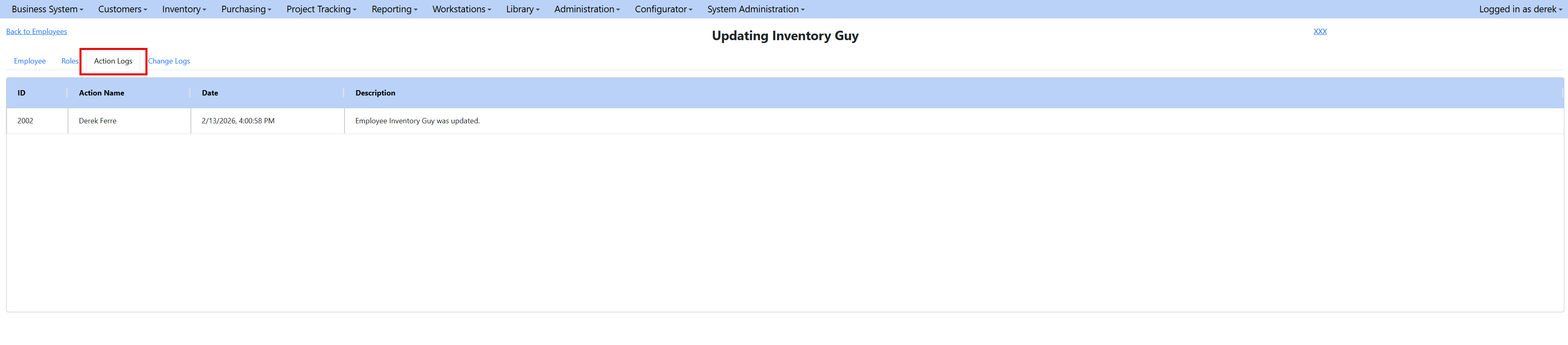
Each entry includes:
- Transaction ID
- User who made the change
- Date of the action
- Description of the action
Example:
"Employee Jane Doe was updated"
This log shows high-level activity related to the employee record.
Change Logs
The Change Logs tab provides a detailed audit trail of field-level changes.
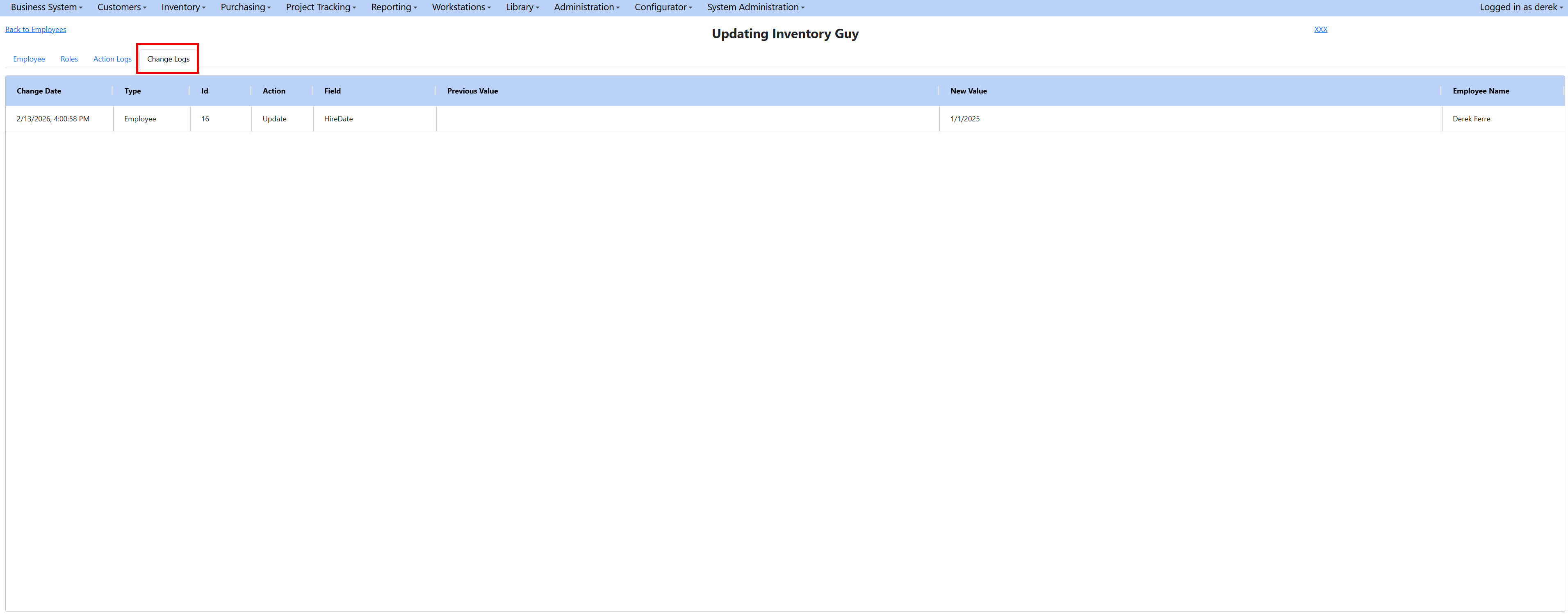
Each entry records:
- Change Date
- Type (example: Employee)
- ID (record updated)
- Field updated (example: Hire Date)
- Previous Value
- New Value
- Employee Name (user who made the change)
This tab is used for auditing, troubleshooting, and accountability.
Password Management
Admin-Initiated Password Reset
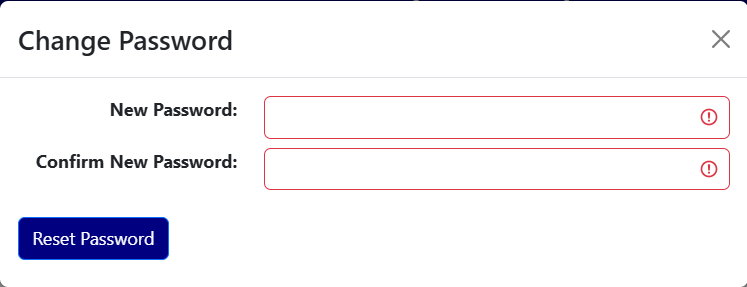
If a user cannot log in or has forgotten their password, an administrator with permissions can reset the password using the Change Password button in the Employee tab.
Forgot Password (Self-Service)
The login screen includes a Forgot Password option allowing users to reset their own password.
Typical flow:
- User selects Forgot Password
- User enters their username
- The system sends a password reset email
- User sets a new password and regains access
Typical New Environment Setup
When configuring a new organization:
- Create an initial Administrator account
- Verify successful login
- Communicate the username to the customer
- Train the Administrator to:
- Maintain employee information
- Request role assignments
- Assist with login issues
- Help users reset passwords